 Glyphfield
Backup and restore
Preserve identities, exact editable source, browser-local saves, assets, and rendered artifacts across browsers and Glyphfield versions.
Glyphfield is local-first, not account-synced. Browser storage makes everyday work fast and private, but the browser profile and site origin are not a durable backup. Keep portable source and original assets outside the browser whenever a design must survive device changes, site-data clearing, or a deployment moving to another hostname.
What needs to be preserved
| Data | Normal owner | Portable by itself? | Backup action |
|---|---|---|---|
| Project identity | Browser localStorage | Only after copying its validated JSON | Open Code, copy the current BrandIdentity, and save it as JSON |
| Tool drafts and navigation | Browser localStorage | No | Copy source from each important source-enabled tool |
| Design Lab autosave and named designs | IndexedDB plus a small recovery journal | Not across profiles or origins | Save a named design, then copy the current CanvasDocument from Code |
| Converted Design Lab assets | IndexedDB and CanvasDocument asset records | Yes only when bytes are embedded | Run export preflight and retain any original file that remains external |
| Uploaded images, fonts, Lottie, and audio | Browser memory, object URLs, or embedded records depending on the tool | Not always | Keep the original authorized files beside the source |
| PNG, JPG, SVG, GIF, MP4, PDF | Downloaded file | Yes, but not editable | Keep beside source as the approved rendered proof |
Closing a Studio tab does not delete a project. Deleting a browser profile, clearing site data, using private browsing, or changing from one origin to another can remove or isolate local state.
Recommended backup bundle
For every design that matters, keep one folder containing:
- The active identity JSON.
- The current tool source JSON or Lottie source.
- The approved rendered artifact.
- Original assets and font files that are not embedded in the source.
- A short note with identity ID, tool name, output dimensions, frame rate, duration, loop mode, and expected audio.
- License and attribution records for third-party marks, materials, fonts, and source media.
Name the files as one set, for example:
launch-system/
  identity.json
  design-lab.canvas.json
  launch-loop.mp4
  launch-loop.gif
  assets/
    wordmark.svg
    campaign-photo.webp
    display-font.woff2
  README.md
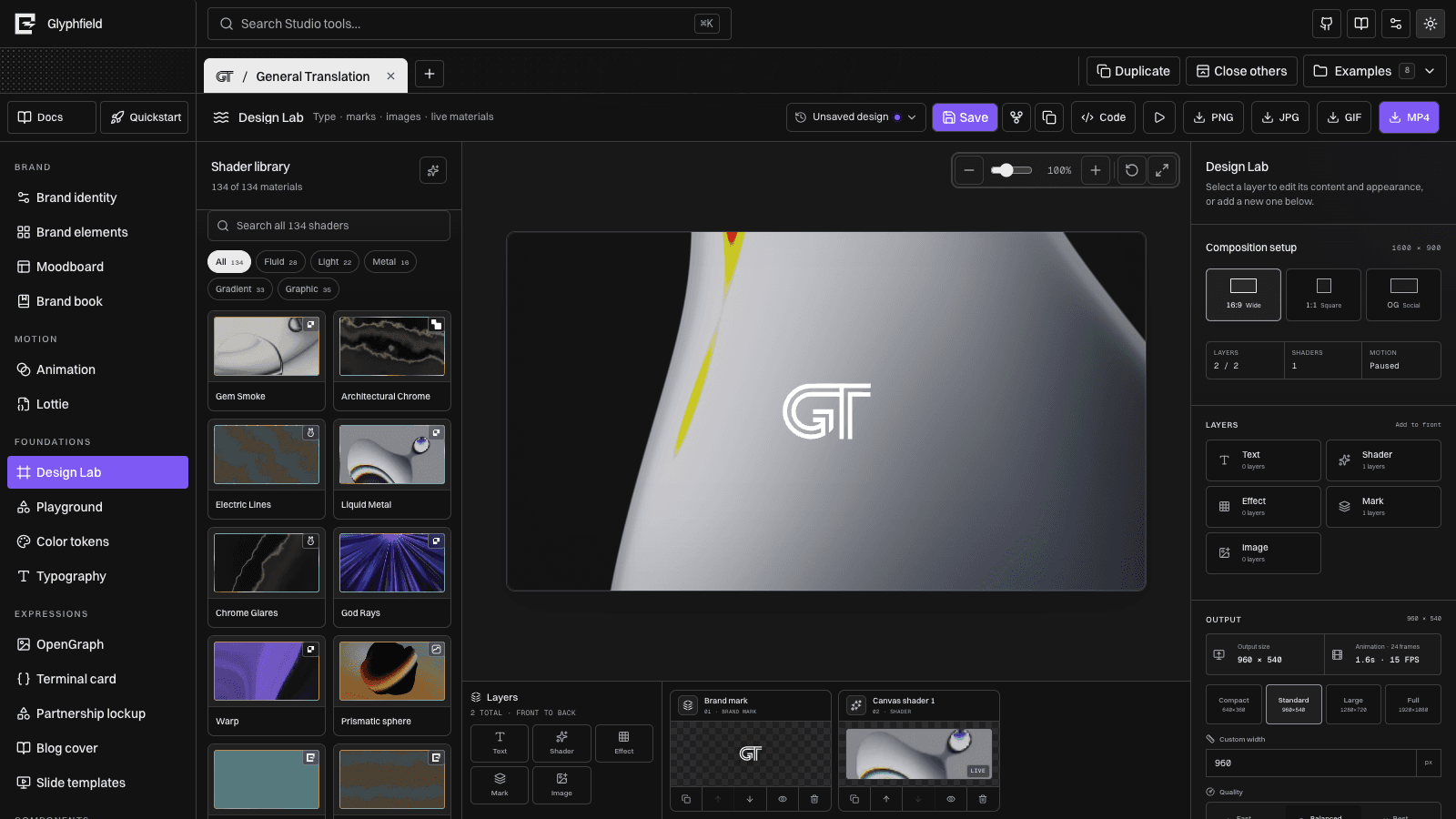
Back up a Design Lab composition
In the Studio
- Open the intended project and Design Lab.
- Wait until the save status reports that the workspace is autosaved.
- Create a named save so the current state has an explicit checkpoint.
- Open Code and select Copy.
- Save the copied JSON as
design-name.canvas.jsonoutside the browser. - Export one PNG proof at the intended dimensions.
- If the design moves, export GIF or MP4 and record the selected duration, FPS, quality, and loop mode.
The Code drawer is the durable source boundary. A named save is still browser-local and should not be treated as an off-device backup.
Through the Browser API
const studio = window.glyphfield.studio;

if (studio.activeTool() !== 'material') {
  throw new Error('Open Design Lab before reading its source.');
}

const description = studio.describe();
if (!description.source.read) throw new Error('Source reading is unavailable.');

const source = studio.readSource();
const document = JSON.parse(source);

if (document.schemaVersion !== 2) {
  throw new Error(`Unexpected CanvasDocument schema ${document.schemaVersion}.`);
}

// Return `source` to the calling agent or save it with the caller's authorized
// file interface. Do not write directly into Glyphfield browser storage.
Read the source again immediately before backup if a user has continued editing. Do not reconstruct a document from an example or from stale application state.
Restore a composition
In the Studio
- Open the correct project and tool.
- Open Code.
- Paste the complete saved object.
- Select Apply and resolve any validation error.
- Confirm the layer count and front-to-back order.
- Inspect logos, images, fonts, shader frames, converter colors, and output dimensions.
- Create a new named save only after the restored composition is visually correct.
Through the Browser API
const studio = window.glyphfield.studio;
const before = studio.readSource();

try {
  await studio.applySource(savedDocument);
  const restored = JSON.parse(studio.readSource());
  if (restored.schemaVersion !== 2) throw new Error('Restore did not normalize.');
} catch (error) {
  // `before` remains the recovery copy for this operation.
  throw error;
}
applySource() validates before committing. A failed application should leave the current artifact unchanged, but retain the pre-restore source until the visual result has been verified.
Move between browsers, devices, or origins
Browser storage is scoped by origin and profile. http://localhost:3012, a preview deployment, and the production hostname have separate data stores even when they serve the same Git commit.
To move safely:
- Export source and original assets from the old origin.
- Open the same or a newer compatible Glyphfield version at the new origin.
- Create or select the intended identity.
- Apply the identity source first.
- Open each tool and apply its source.
- Reattach any non-embedded local font, image, audio, or Lottie file.
- Re-export a proof and compare it with the approved artifact.
Glyphfield does not currently provide a one-click archive of every project, draft, IndexedDB record, and original local file. Treat the source-plus-assets bundle above as the supported transfer path.
Autosave recovery
Design Lab writes a complete autosave to IndexedDB and maintains a small synchronous recovery journal while a newer write is settling. On the same origin and browser profile, reloading the page can restore the newest consistent draft.
If recovery appears stuck:
- Do not clear site data.
- Reload the same origin once and wait for the autosave status to settle.
- Open the expected identity and Design Lab workspace.
- If source opens, copy it before making more edits.
- If IndexedDB is blocked, preserve any readable Code source and original files, then continue in a normal browser profile.
Cleared site data cannot be reconstructed from Glyphfield unless an external source or artifact backup exists.
Migration rules
- CanvasDocument schema 1 is migrated to schema 2 when it parses successfully.
- CanvasDocument schema 2 is the current portable scene graph.
- Design Lab metadata source version 4 is the current complete composition model.
- A
design-sequenceHTTP response contains a version-3 compatibility document. Apply it first, then re-read the normalized CanvasDocument before storing it as the durable source. - Unknown future canvas schema versions are rejected rather than guessed.
- Stable IDs, page order, asset records, and unknown metadata should remain intact through any manual edit.
See Version compatibility for the full matrix and Troubleshooting for recovery failures.
Restore verification
A restore is complete only when:
- The intended identity and tool are active.
- Source applies without validation errors.
- Layer count, order, transforms, opacity, and visibility match.
- Embedded and local assets resolve.
- At least one still export is non-empty and has the expected dimensions.
- Motion contains changing frames; seamless GIFs close cleanly; MP4 audio is present when required.
- The restored source is copied again after normalization.
See Storage and privacy, Source code editing, and Formats and portability.