 Glyphfield
Design Lab
Compose type, marks, images, shaders, stickers, converters, and motion on one export-ready canvas.
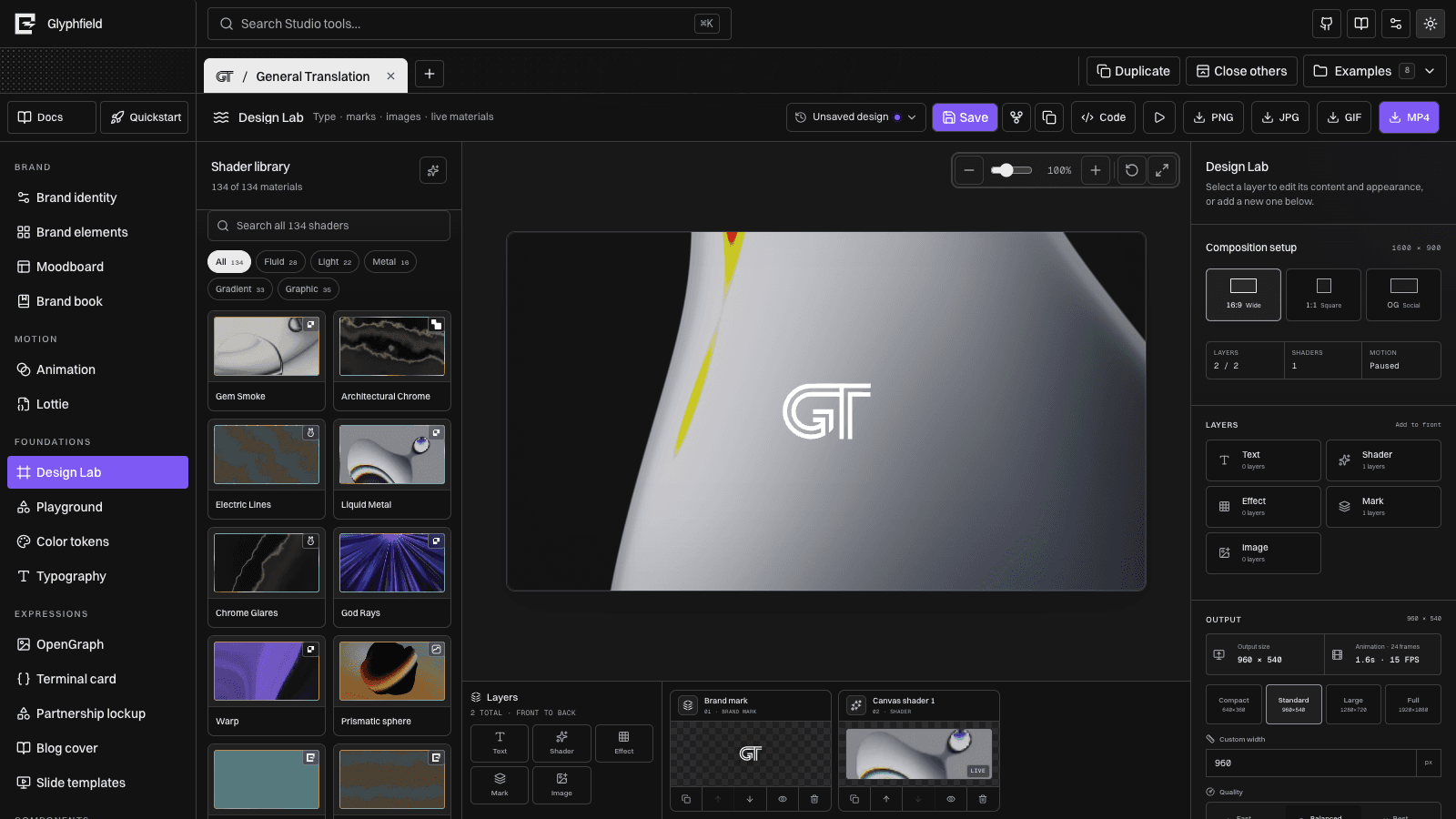
Design Lab is Glyphfield's general composition workspace. It combines the shared Shader Library with a portable layer document, direct canvas manipulation, saved designs, deterministic still export, and browser-native GIF and MP4 capture.
Mental model
Text, brand marks, imported images, stickers, live shaders, and converters share one ordered stack.
A shader can cover the canvas or fill a specific text, mark, or image without changing that layer's geometry.
Scrub shader time, pause on a look, build a shader-cut sequence, or export a continuous loop.
PNG, JPG, GIF, and MP4 use the same source document, layer order, colors, and live material state.
The canvas itself is the output surface. The surrounding dotted workspace, library, inspector, zoom controls, and layer dock are editing chrome and never appear in an export.
Add and arrange layers
Use the layer actions to add any number of:
- Text layers with editable copy, font role, weight, size, tracking, line height, alignment, color, opacity, and optional text effect.
- Mark layers from the active identity, including alternate uploaded or converted brand assets.
- Image layers from authorized local files or the identity asset library.
- Shader layers from the shared material catalog.
- Effect layers that convert the visible composition beneath them.
Select a layer on the canvas or in the bottom dock. Drag it to move, pull the resize handle to scale, use arrow keys to nudge, and use Shift + arrow for larger steps. The inspector controls exact position, size, rotation, opacity, visibility, material, appearance, and type settings.
The dock is ordered front to back. Move layers up or down, duplicate them, hide them without deleting them, or remove them. Multi-selection and groups let related layers move as one unit while preserving individual settings.
Layer opacity and blending
Every layer carries its own opacity. Shader layers also expose normal, screen, overlay, and multiply blending. Content-bound shaders contribute their own opacity in addition to the text, logo, or image opacity, so a material can be faded without making the underlying content disappear from the document.
Text and text effects
Text is a first-class canvas element, not a single caption slot. Add up to 32 text layers through an agent-generated sequence and as many as the interactive composition can reasonably render.
Text can be rendered as:
- A solid identity color.
- A live shader clipped to the glyph shape.
- Bayer, ASCII, halftone, or posterized content through an effect layer.
- A sticker with a contrasting inner separation edge, cut border, laminate, relief, and shadow.
- A shadowed or outlined display layer without changing the original font asset.
Converter foreground and background colors are explicit. This prevents the converted glyph field from becoming accidentally transparent against the artboard.
Composition converters
Converters affect all visible layers below their position in the stack.
| Converter | Best for | Main controls |
|---|---|---|
| Bayer | Ordered print texture and stable pixel patterns | Cell size, threshold, contrast, inversion, foreground/background |
| ASCII | Rebuilding luminance from a fixed glyph ramp | Glyph cell size, threshold, contrast, inversion, colors |
| Halftone | Editorial dot screens and printed type | Dot cell size, threshold, contrast, inversion, colors |
| Posterize | Limited-tone fields with graphic color steps | Cell size, color levels, contrast, inversion, colors |
Effect previews render the actual converter pattern in the layer dock. During continuous slider movement, the preview uses a lower-cost intermediate render and commits the full result when input settles.
Shader Library
The left library is shared with Animation. Search by material or source and filter by Fluid, Light, Metal, Gradient, or Graphic. Cards use quality-ranked previews; static thumbnails keep the full catalog visible while live previews are budgeted to the visible region.
Select a card to add or replace a shader layer. Common controls include three-color palettes, center, frequency, detail, strength, amplitude, density, grain, rotation, motion speed, opacity, blend mode, and shader size.
Shader size and frame history
Shader size behaves like material zoom from 0.1× to 10×. Values below 1× reveal more of the field; values above 1× move into its details. The control maps logarithmically so equal travel feels like equal visual zoom rather than a jump through the high end.
The motion timeline exposes the material's time history. Scrub to choose a particular look, pause to keep that frame, or resume live playback. The selected frame is serialized into saved designs and source so reopening the composition does not silently move the shader to a different look.
Shader-cut sequences
Sequence mode turns one canvas shader into an 8–12 material timeline. Intro cuts can accelerate toward the final selected shader or use even timing; the last material holds for 3–6 seconds.
The timeline is deterministic: it records material IDs, segment start/end times, target shader layer, sequence offset, and paused frame. Preview, GIF, and MP4 resolve from the same timeline.
Use sequence export for a deliberately edited montage. Use standard GIF or MP4 when the current shader should animate continuously without material cuts.
Stickers and surfaces
Any logo, text, or imported image can become a sticker. Sticker controls add:
- A cut border with editable color and width.
- A darker or contrasting inner edge so white artwork remains legible on white vinyl.
- Bevel, relief, seam, inset, foil, glint, laminate, and texture controls.
- Independent opacity, rotation, and placement.
A sticker does not require a surface. Choose no background and export it over the artboard color, or combine it with a cloth, metal, paper, glass, wood, stone, or live-shader layer. Surface textures remain ordinary layers and can be hidden or removed.
Saved designs and recovery
Save stores the complete versioned canvas document in IndexedDB for the active project and tool. A saved design includes:
- Canvas dimensions, ratio, background, and workspace view.
- Every layer's ID, type, name, geometry, rotation, visibility, opacity, and blend mode.
- Text content and typography.
- Embedded or referenced assets.
- Layer order, groups, and content-bound shader assignments.
- Shader settings, frame history, shader sequence, and timeline.
- Export width, duration, frame rate, quality, and loop mode.
Autosave writes a recovery record while editing. Reloading can restore the last consistent draft even if a larger IndexedDB write was interrupted. Saving, cloning, and forking create independent records rather than sharing mutable layer objects.
Export
| Format | Behavior |
|---|---|
| PNG | Lossless still with alpha when the composition supports it |
| JPG | Smaller opaque still using the selected background color |
| GIF | Animated browser capture with global/per-frame palette control and optional seamless closure |
| MP4 | Browser-native video, with quality selection and H.264 when the browser exposes it |
Output width ranges from 320–3840 pixels and preserves the selected wide, square, or OpenGraph ratio. Motion exports use 12, 15, 24, or 30 FPS and a bounded duration. The export review displays the completed artifact before download.
For a perfect-loop GIF, choose Seamless. Glyphfield captures overlap frames, blends the tail into the recorded head, and verifies that the final output frame closes against the seam anchor. Use Raw motion only when the shader is already mathematically periodic or when a hard cut is intentional.
Source document
The Code drawer exposes Design Lab source version 4. It is a portable CanvasDocument envelope with Design Lab metadata for export settings, groups, layer shaders, ratio, shader sequence, timeline, and workspace.
{
  "schemaVersion": 2,
  "brandId": "gt",
  "capabilities": ["animation", "assets", "constraints", "guides", "history", "layers", "pages", "text"],
  "pages": {},
  "elements": {},
  "assets": {},
  "metadata": {
    "tool": "design-lab",
    "designLab": {
      "sourceVersion": 4,
      "ratio": "wide",
      "exportSettings": {},
      "groups": [],
      "layerShaders": {},
      "shaderSequence": {},
      "timeline": {},
      "workspace": {}
    }
  }
}
Start with window.glyphfield.studio.readSource() rather than constructing the complete document from memory. Apply changes with await window.glyphfield.studio.applySource(document), then inspect and export through design.export.
See Browser API, Shader Library, and Formats and portability.