 Glyphfield
Studio overview
Understand projects, navigation, canvas controls, appearance, persistence, and the complete tool catalog.
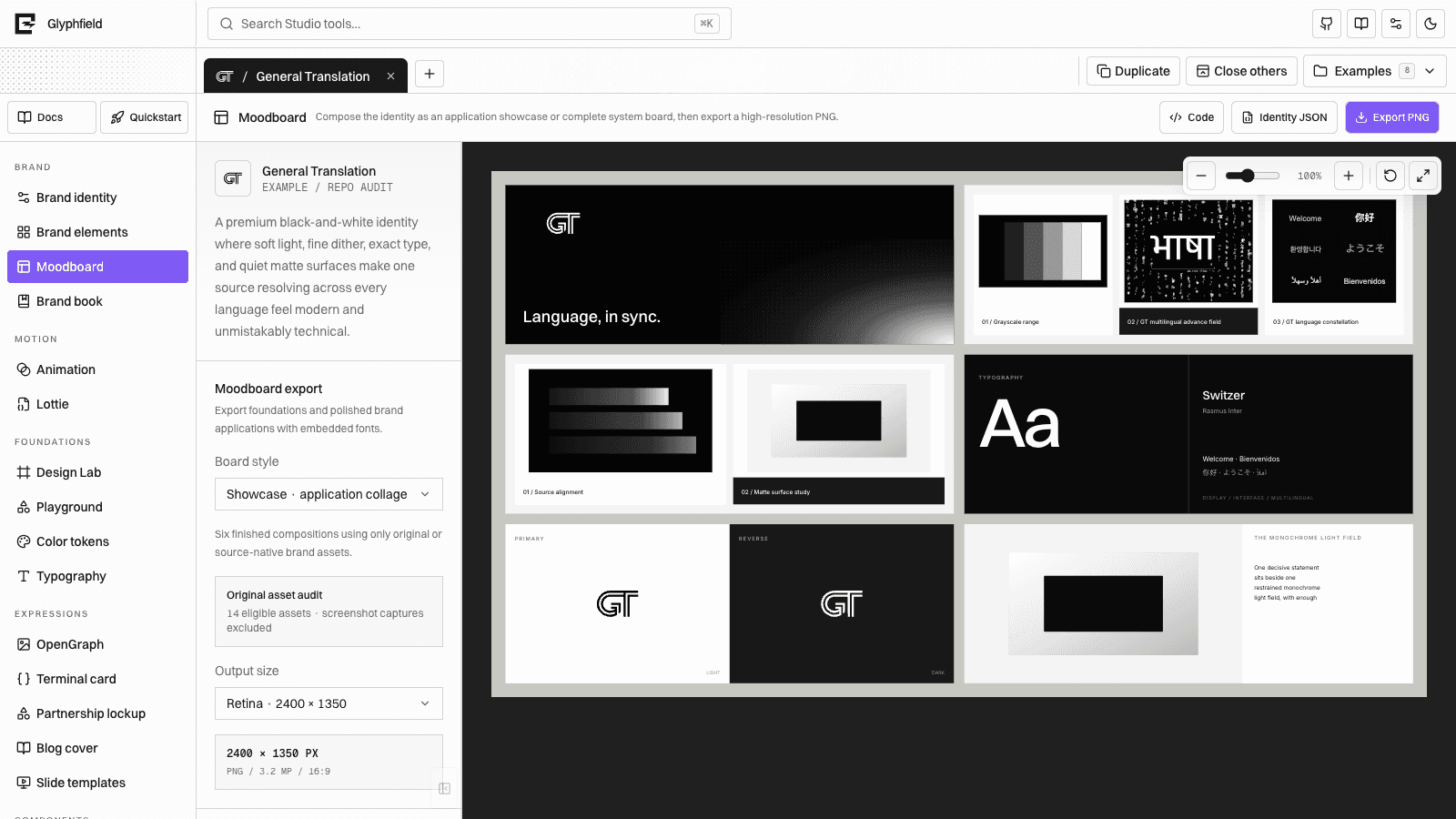
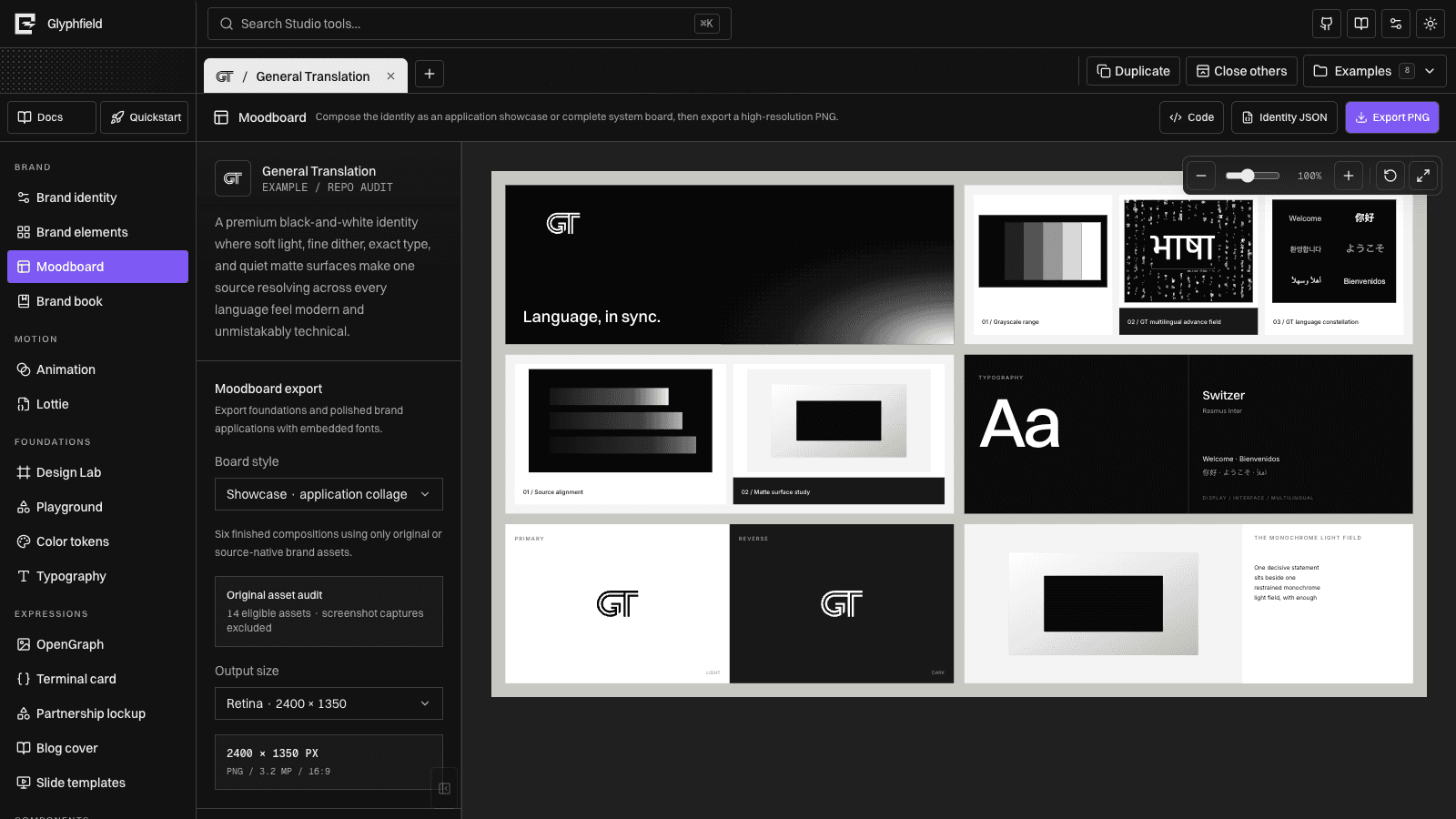
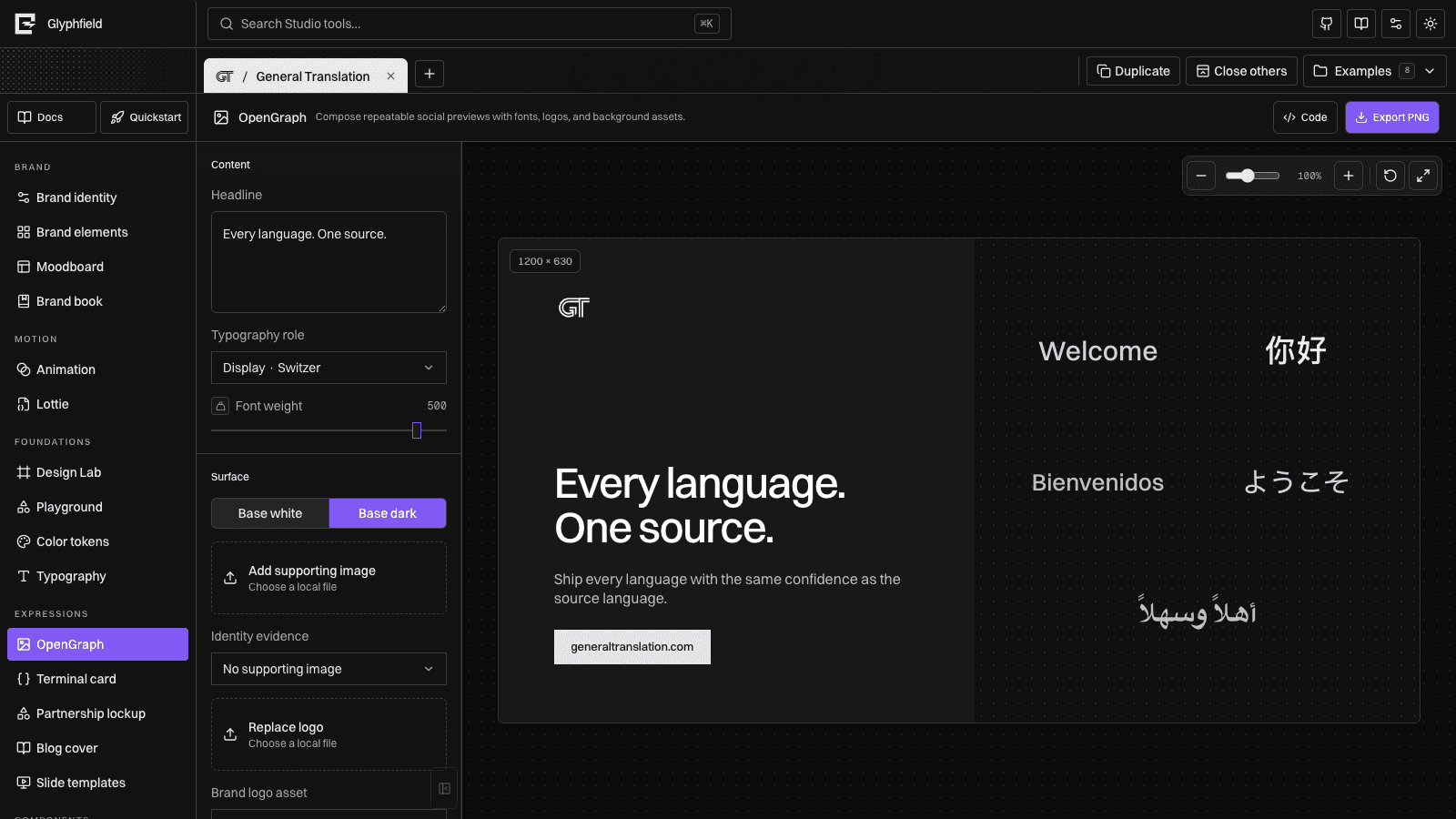
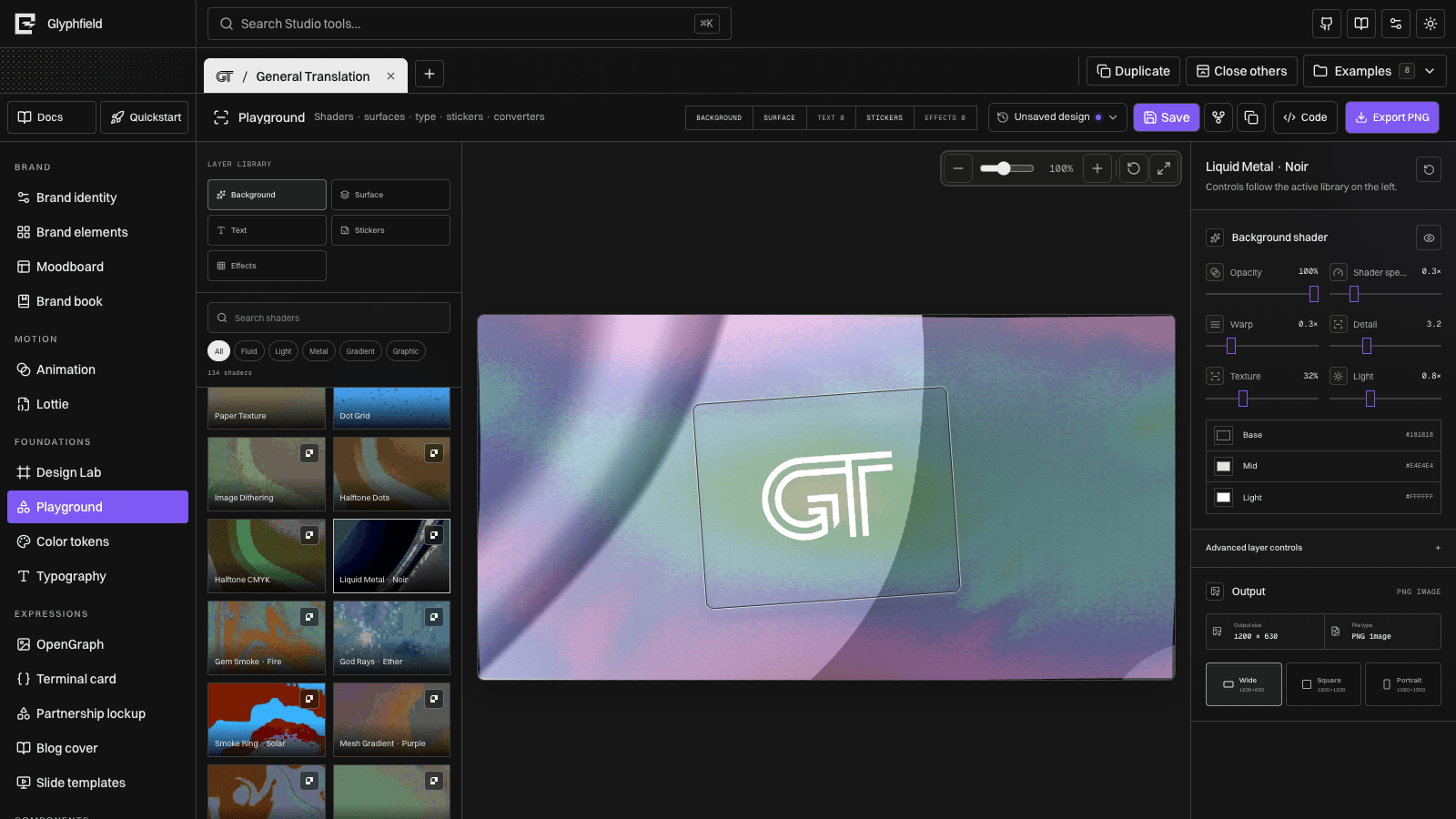
The Studio is the visual workspace at /studio. It is built around persistent brand-project tabs, a live tool catalog, reusable editor systems, and one identity source per project. Agents should read /api/labs rather than hard-code the number of available tools.
Every generator uses the same editor systems for color, canvas zoom, selection, layers, alignment, assets, persistent drafts, and source editing. This makes an interaction learned in one tool available everywhere it applies. The shared Shader Library adds a large, quality-sorted live catalog to Design Lab and Animation; /api/materials is the authoritative count.
The Code action opens a right-side source drawer for the active artifact. Valid JSON or material source applies back into the same state used by the visual inspector, canvas, and export. Read Source code editing for formats, validation, and round-trip behavior.
Tool catalog
| Group | Tools |
|---|---|
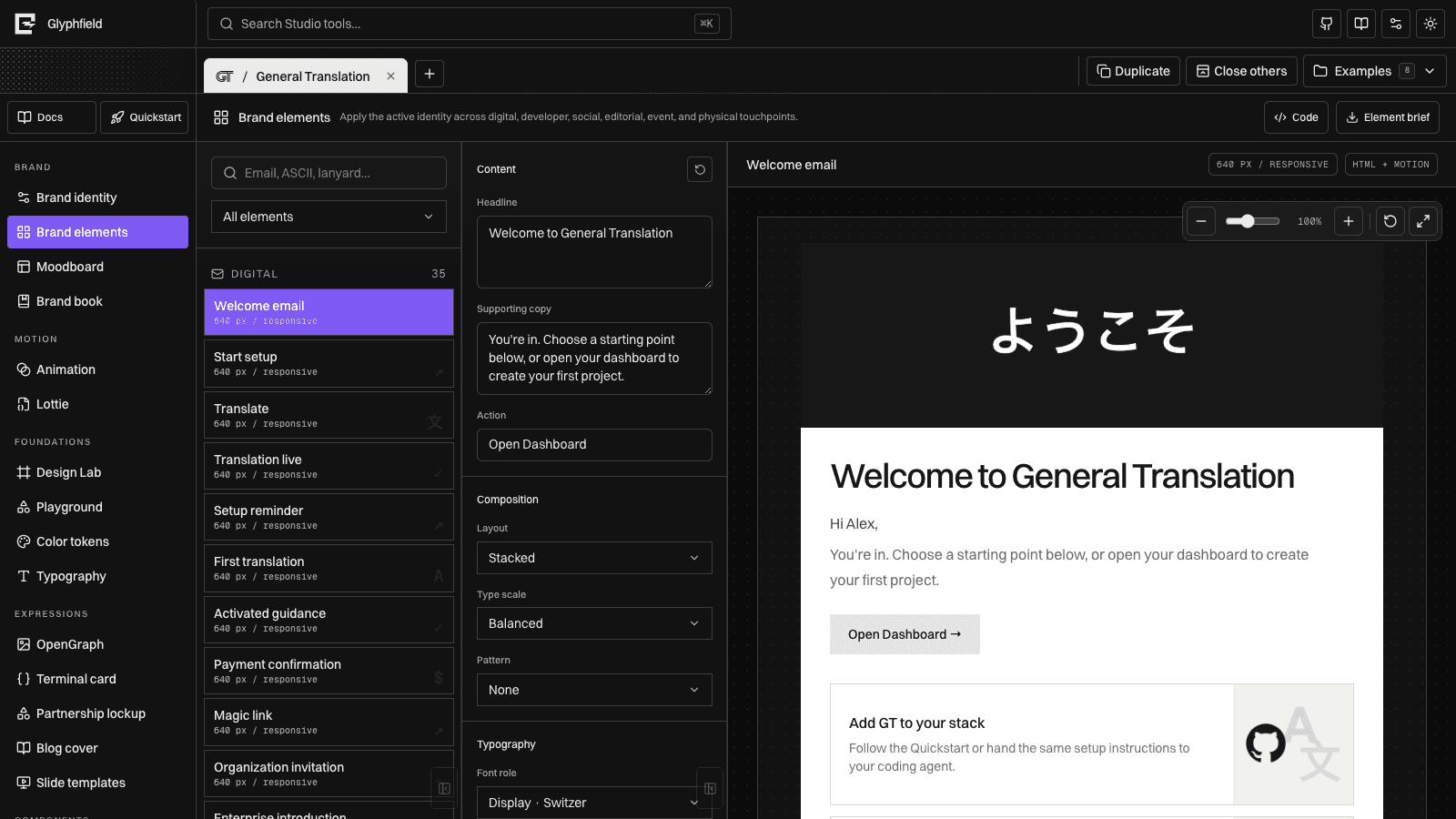
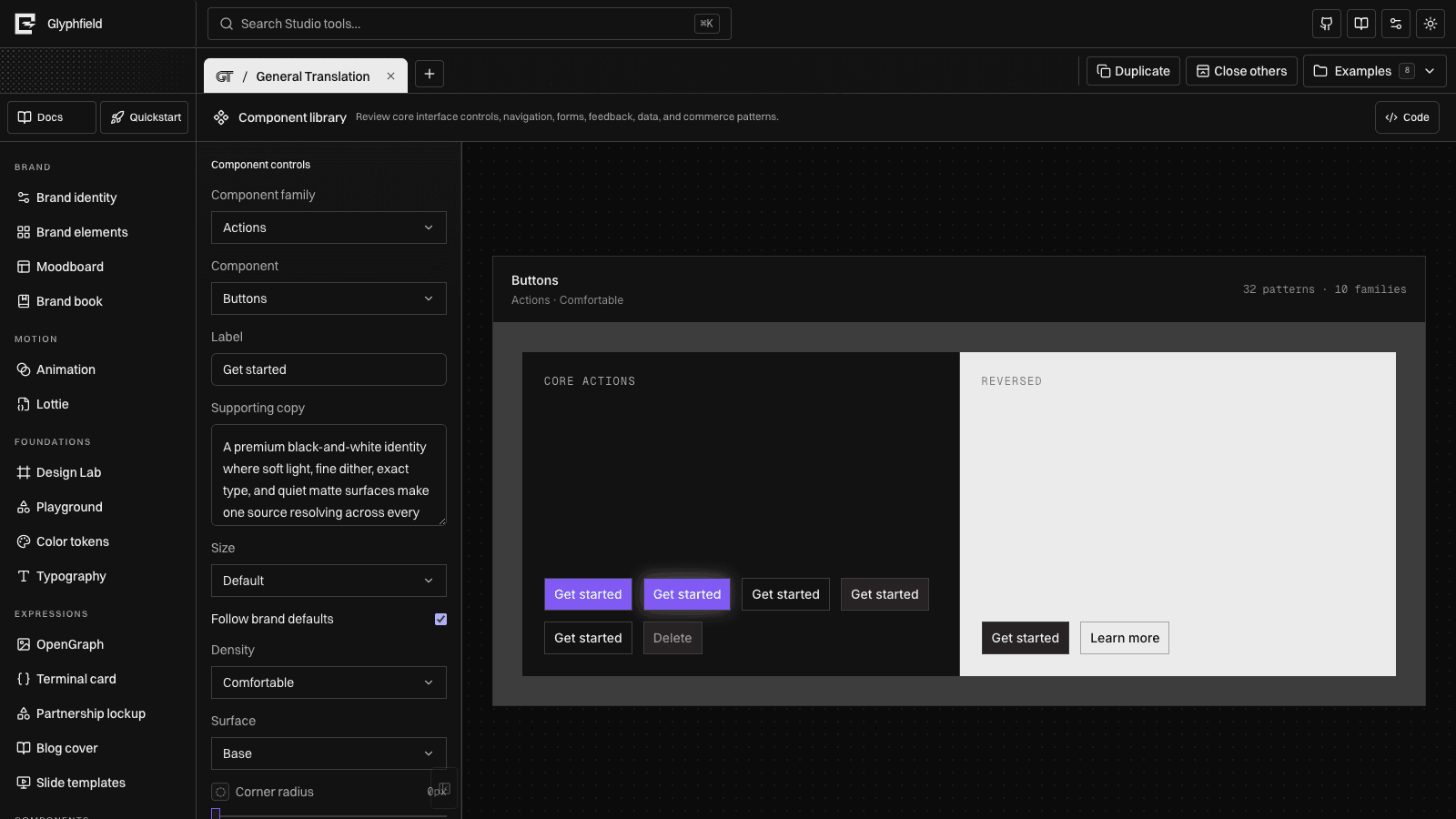
| Brand | Brand identity, Brand elements, Moodboard, Brand Book |
| Motion | Animation, Lottie |
| Foundations | Design Lab, Color tokens, Typography |
| Expressions | OpenGraph, Terminal card, Partnership lockup, Blog cover, Slide templates |
| Components | Component library |
Search covers tool names, descriptions, and capability keywords. ⌘K, Ctrl+K, or / focuses Studio search.
Projects and tabs
Each project contains a BrandIdentity and a separate set of tool drafts. Tabs are views into saved projects:
- Add creates a new local identity.
- Duplicate copies the active identity into an editable project.
- Close others reduces visual clutter without deleting projects.
- All projects filters and reopens template, local, and example projects.
Tabs drag directly like browser tabs. The active tab moves with the pointer while adjacent tabs shift to expose the insertion point; there is no separate drag handle.
Canvas navigation
Reusable canvas controls appear over generators and boards:
−and+change zoom in ten-percent steps.- The percentage resets to 100%.
- Fit restores the default view.
- The slider provides fine-grained zoom from 40% to 200%.
- Wheel or trackpad input over the stage changes zoom, while dragging the empty workspace pans around a zoomed artifact.
- Reset restores the original centered view.
Animation also exposes edge and corner handles on the artifact itself. Drag them to change output width, height, or both while keeping the canvas and numeric settings synchronized.
Zoom is saved per project and tool.
Selection, layers, and alignment
Slide and expression canvases use direct manipulation without preselecting an object:
- Select a layer from the canvas or layer panel.
- Drag to move and pull the corner handle to resize.
- Nudge with arrow keys or use Shift + arrow for larger movement.
- Reorder objects forward or backward.
- Align left, center, right, top, middle, or bottom against the artifact.
- Reset only the selected layer without resetting the whole design.
Canvas gestures and inspector controls update the same persistent transform. Aspect-ratio-safe artifacts keep their declared proportions at every workspace size and export resolution.
Appearance
Visual settings control Studio chrome only:
- Light, dark, or automatic system theme
- Neutral, violet, teal, or lime selection accent
- Dots, grid, or plain canvas
- Rounded or square Studio controls and panels; rounded is the default
- Switzer, Be Vietnam Pro, Schibsted Grotesk, or Rethink Sans interface font
- Compact or comfortable density
- Full or reduced decorative motion
Generated brand surfaces use identity colors and remain stable when the Studio theme changes.
Persistence
Project identities, open tabs, active tool, folder, appearance, and most editor drafts are saved in browser localStorage. Design Lab saved designs and autosave recovery use IndexedDB plus a small local recovery record so large embedded canvas documents do not compete with ordinary settings. Local file object URLs last for the current page session unless a source document or downloaded artifact explicitly embeds them.
Source changes follow the same persistence rules as visual edits. Opening or closing the drawer does not create a second copy of the artifact.
Agents in Studio
Every active tool installs window.glyphfield.studio. Agents can enumerate visible controls, activate or set them by accessible label, read/apply exact source when supported, invoke tool-specific operations, and download returned Blob artifacts. This is the supported route for browser-native work—not coordinate clicking or private React state.